
ESteps SmartStorage for Business Central
SmartStorage: The bridge between Business Central and your servers.
Connect Business Central directly to your local SMB network drives, FTP, and SFTP servers. Secure, automated, and fully integrated into your AL logic.
What is SmartStorage?
Documents are often stored on the company’s own servers or need to be uploaded to or downloaded from a partner’s FTP/SFTP server.
Forget about tedious manual uploads and downloads to FTP or company servers.
eSteps SmartStorage bridges the gap between Business Central and your existing infrastructure.
We provide you with a direct channel for your data exchange—once set up, your communication flows seamlessly on its own.
Example: SFTP Access via BC External File Accounts
What file formats does SmartStorage support?
SFTP is a secure network protocol for transferring, managing, and storing files over encrypted connections. It is based on the SSH protocol and protects data from unauthorized access during transmission. Unlike conventional FTP, SFTP ensures fully encrypted communication.
Server Message Block (SMB) is a network protocol that enables access to files on computers, particularly in Windows environments. It also allows access to network drives on other servers.
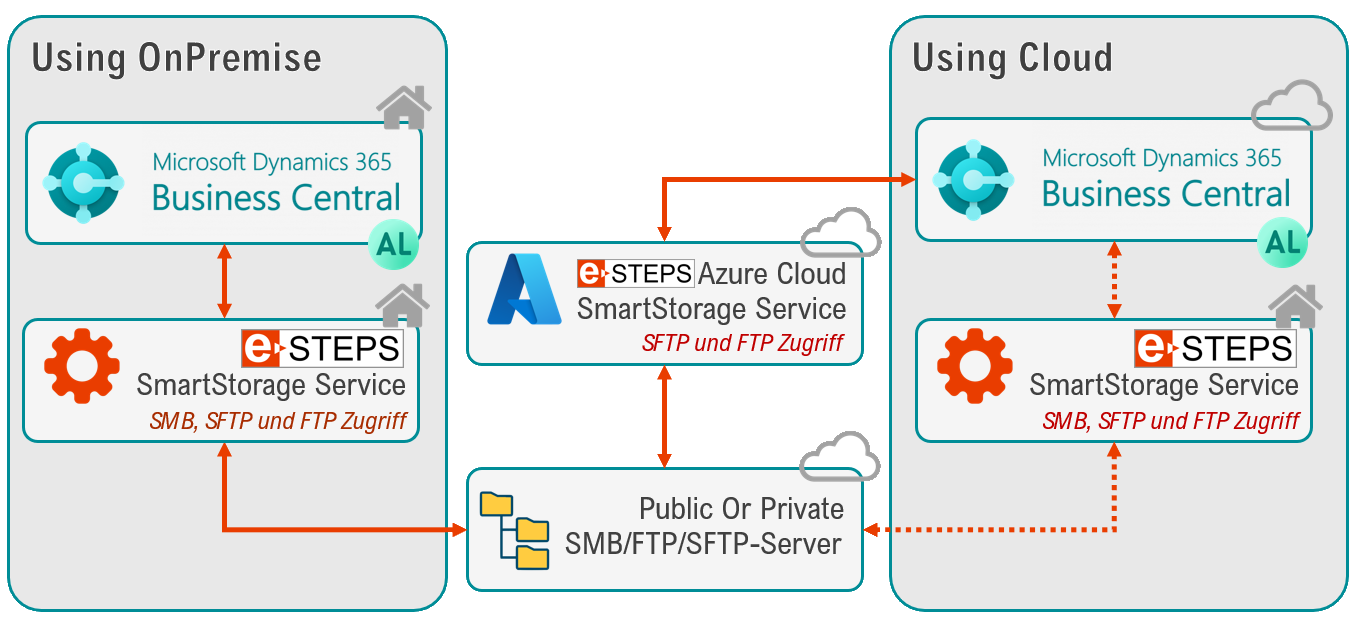
When using SmartStorage within the Business Central Cloud (SaaS), direct access to local network shares (SMB/CIFS) is not possible for security and infrastructure reasons.
To connect to your local file server, a local SmartStorage service is required. This acts as a secure gateway between the cloud environment and your local infrastructure to provide files efficiently and in an encrypted manner.
A classic protocol for transferring files over networks. It is mainly used for uploading public documents, backups, and file downloads.
Which versions of Business Central does SmartStorage support?
Integrating SmartStorage into your Business Central cloud environment takes just three simple steps:
- AppSource installation: You can download the extension directly from Microsoft AppSource. This ensures seamless integration and compliance with Microsoft standards.
- Request a trial license: Request your free 30-day trial license
- Secure Communication: Data exchange between Business Central and the SmartStorage software is handled via a dedicated (stateless) Microsoft Azure service. This acts as a secure bridge to guarantee high-performance, encrypted communication. Alternatively, you can also access a self-hosted SmartStorage service.
Only a few steps are required to use SmartStorage in your Business Central on-premises environment (version BC 26 or later):
- Download: Download the deployment package as a ZIP file.
- Local service: Communication between Business Central and your storage systems takes place via a local service. You’ll find the relevant setup files directly in the download package.
- Technical Integration: SmartStorage uses Business Central’s modern External File Storage interface. This ensures a clean, standards-compliant integration of your data.
Note: Since the service is installed locally, you retain full control over the data flow within your infrastructure.
Implementing SmartStorage in your Business Central on-premises environment (BC 14 through version 26) requires just a few steps:
- Download: Download the deployment package as a ZIP file.
- Local service: Communication between Business Central and your storage solutions takes place via a dedicated local service. You’ll find the relevant setup files directly in the download package.
- Technical Integration: Integration is handled via the SmartStorage Codeunit. This provides you with the same range of functions that is available in newer BC versions via the External File Storage interface.
Advantage: Even without the new Microsoft interface, you benefit from full performance and the same range of functions for your file management. A later switch to the interface during a Business Central update requires only minimal adjustments.
SmartStorage Price List
Our smart products are designed to provide full price transparency from the very beginning
Trial version
/ 30 days
Standard
/ year
Unlimited
/ year
The Benefits of SmartStorage
Easy access
Direct read and write access to SMB/CIFS (network drives), FTP, and SFTP.
Cloud-to-Local Bridge
Overcome the cloud barrier and seamlessly integrate your on-premises storage into BC processes.
Developer-First
Use simple AL functions to move, delete, or access files.
Included features
No matter which version of Business Central you use, the feature set remains the same.
The SmartStorage codeunit for older versions of Business Central is designed to replicate the logic and methods of the modern External File Storage interface (BC 26 and later). The following functions are available:
CreateFile
Uploads a data stream (InStream) and creates a new file from it in external storage.
GetFile
Downloads a file from external storage and makes its contents available as an InStream.
CopyFile
Creates an exact copy of an existing file in a new location without transferring the data to BC.
FileExists
Quickly checks whether a specific file exists at the specified path.
MoveFile
Moves a file to a new location and deletes it from its original path (can also be used for renaming).
DeleteFile
Permanently deletes a single, specific file from the external storage.
DeleteDirectory
Deletes a folder that is stored in memory.
DirectoryExists
Checks whether a specific directory already exists in memory.
CreateDirectory
Creates a new folder or an entire directory structure on external storage.
ListDirectories
Provides an overview of all subfolders located within a specific directory.
ListFiles
Lists all files within a folder and returns metadata such as name and size.
Technical Topic
Simplified overview of the technical process for SmartStorage.
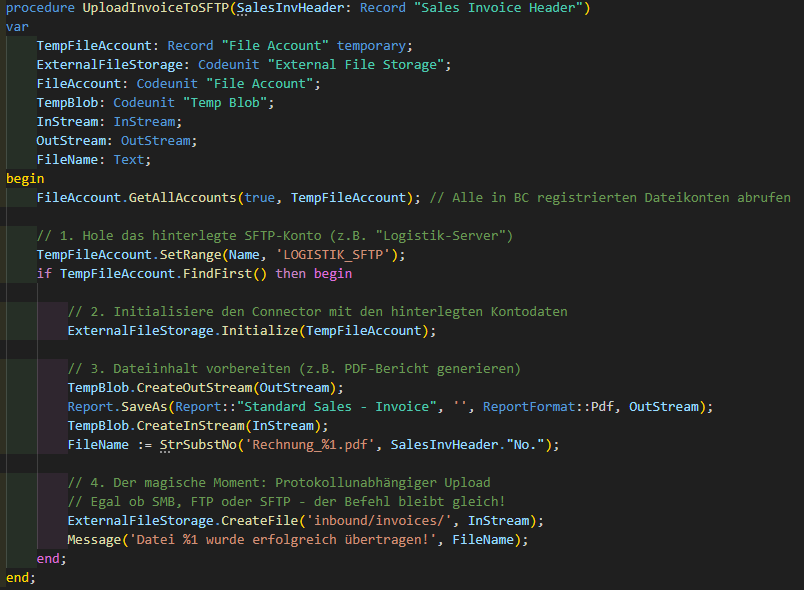
Accessing an SFTP server via the Microsoft External File Storage Interface starting with BC version 26:
You can access the file account directly using the Microsoft File Explorer or via your own AL code.
In the following example, an invoice is generated as a PDF in Business Central and then uploaded to an SFTP server.
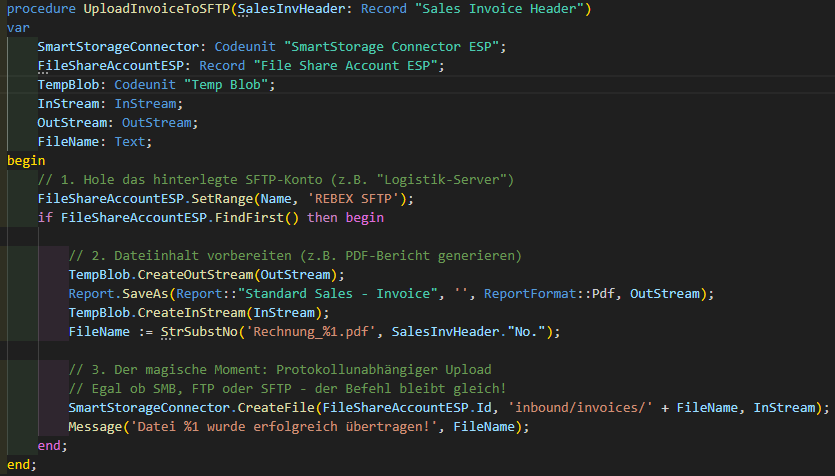
Access via the eSteps SmartStorage codeunit
from BC versions 18–25:
Here is the same process (BC18 to BC26) using the SmartStorage codeunit.
Interested? Contact us for a free 30-day trial license.
To set up the desired trial license for you, we only need your Business Central Voice ID. For the cloud version, we need your tenant ID.
This identifier is technically necessary to correctly link the license to your environment.
We place great importance on protecting your data:
- No advertising: Your data will be used exclusively for licensing purposes.
- No contact: You do not need to worry about being contacted for advertising purposes.
- Security: The Voice ID is used solely for technical assignment within the system.
Once you have submitted the form, you will receive a test license file from us via email shortly thereafter.

EULA
EULA DE

EULA DE


eSteps Informationstechnologien GmbH is your reliable and experienced partner for digital transformation and the optimization of your business processes. For nearly 25 years, we have successfully supported medium-sized companies in their journey toward more efficient operations. eSteps is a Microsoft Business Central Solution Center, a Microsoft ISV (Independent Software Vendor) with its own Business Central extensions, and is officially certified as a partner.